
Learning & LMS
LMS manager reporting permissions to check before you buy
Before approving LMS manager reporting, agree which learners each manager may see, which learning details they need and what happens when reporting lines change. Test that scope using ordinary manager accounts, including exports. A useful demonstration shows both the records that appear and those that remain inaccessible. For Australian workplace training teams, LMS manager reporting permissions belong in the buying brief. A supervisor checking induction across two sites may need a different view from a regional manager. Writing down those differences gives the supplier something concrete to configure and your team something clear to accept.
Define who belongs in each manager report
Start with the people a manager is responsible for. Does the report cover direct reports, everyone below them in the reporting hierarchy, a department or a nominated group? Decide how temporary supervisors, contractors and employees with two reporting lines fit that rule.
Then list the learning details required for the task. Completion status and due dates may be enough for a supervisor following up induction. Access to assessment answers, detailed grades or broader profile information needs its own reason. Record the allowed actions too: viewing progress, downloading it and changing enrolments are separate requirements.
Check what the manager role actually grants
Product labels need careful reading. In standard Moodle, the default Manager role has broad course-management and administrative capabilities. Assigning it because someone manages staff can give them more access than their reporting task requires.
Moodle permissions also depend on the context where a role is assigned, such as a course, category or the whole site. Moodle Workplace adds organisation features using departments, positions and job assignments to establish reporting lines. Those organisation features are Workplace-specific. Ask the supplier to identify the product, configuration and any additional components needed for your proposed team view.
Separate report access from learner visibility
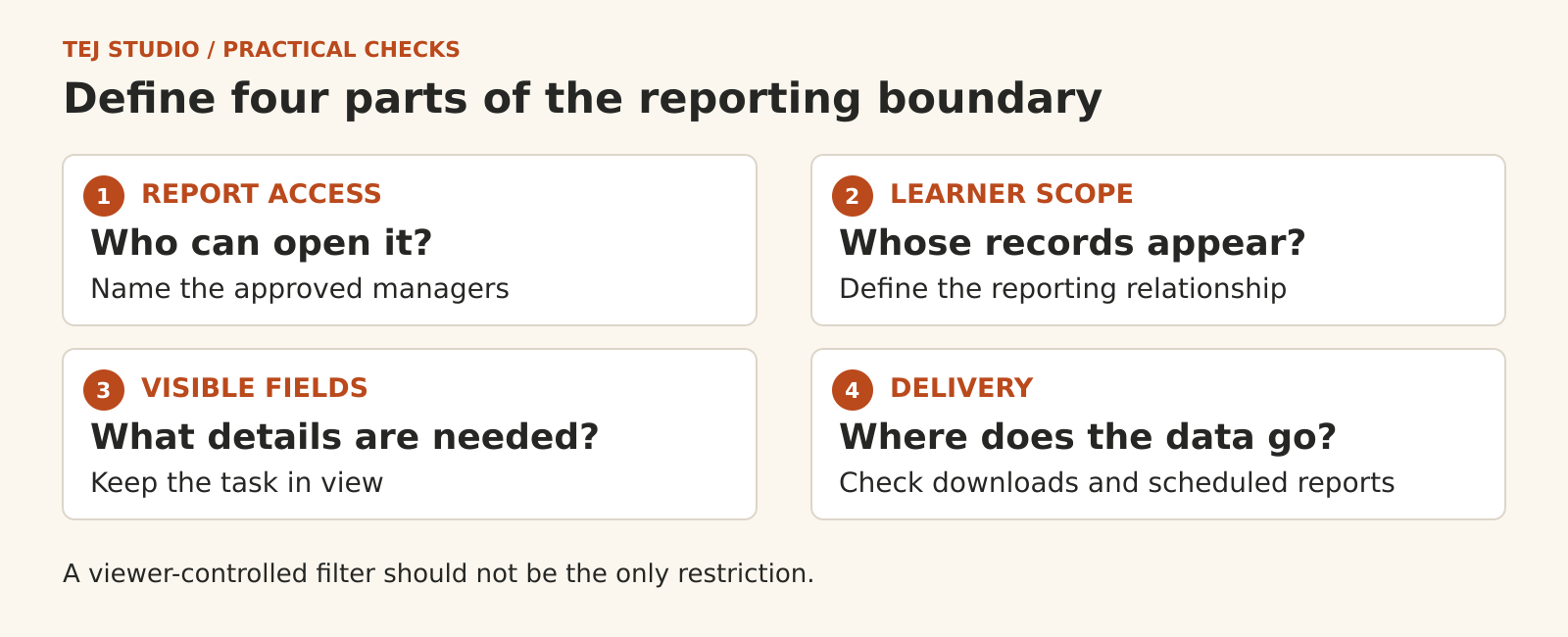
Check two questions in every report: who can open it, and whose records it contains. In Moodle Workplace, report audiences grant access, while report conditions can restrict the learner rows shown. A condition based on the viewer’s relationship to learners can produce different results for different managers.
A selectable department filter is useful for narrowing a view. If a manager can clear that filter and reveal other departments, it has not established the boundary you requested. Have the supplier demonstrate the enforced restriction, including what happens when a manager follows a saved link to an out-of-scope learner.
Decide what happens after a transfer
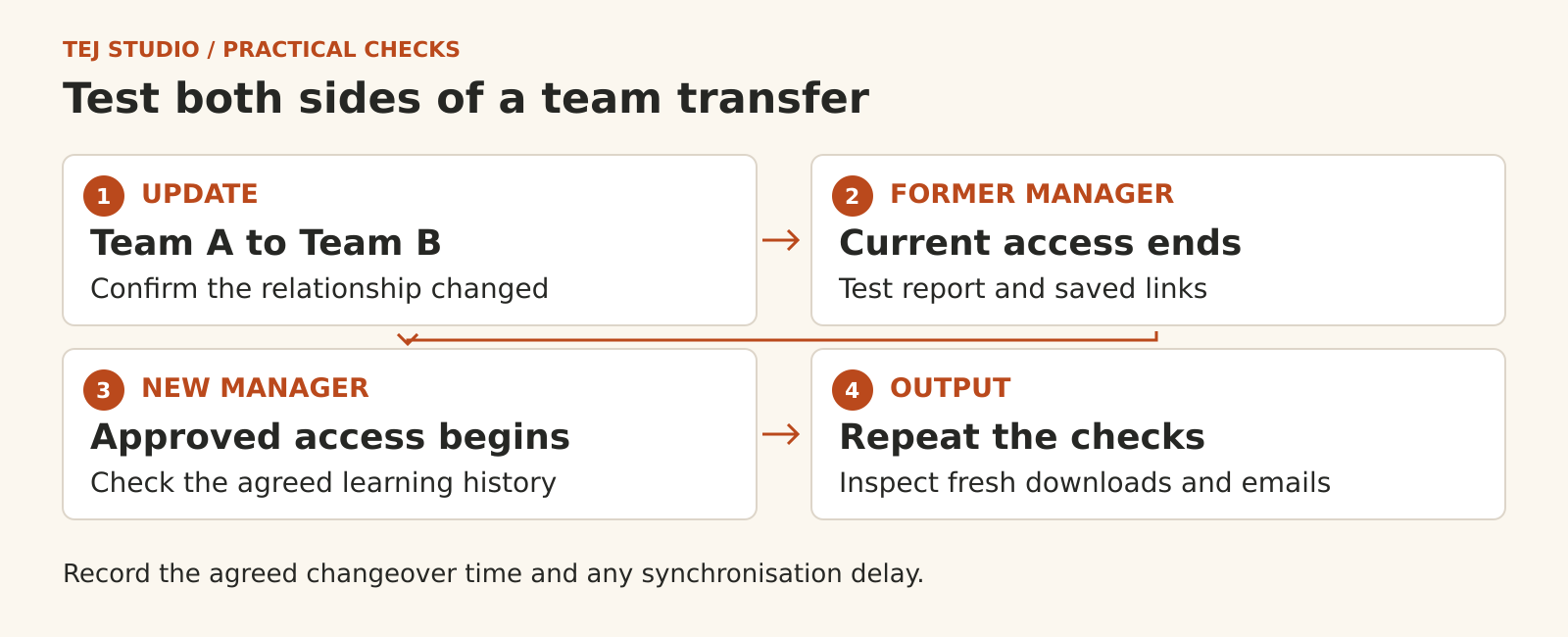
Suppose a test learner moves from the Brisbane team to the Gold Coast team. Decide when the new manager gains access, when the former manager loses it and which earlier completions the new manager should see. Give historical reporting a separate rule if former managers need access to a defined period.
Ask where the reporting relationship comes from and how quickly changes reach the LMS. If an HR import updates it, agree the expected delay and who handles a failed update. Removing a manager’s visibility should not require deleting the learner’s training history. Also test a manager who moves teams or stops supervising people.
Inspect the exported and emailed report
Download the report while signed in as the test manager. Inspect learner rows and columns in the actual file. Compare them with the approved scope, including records beyond the first screen of results.
Scheduled delivery needs its own check. Moodle Workplace can generate scheduled report data as the schedule creator, the recipient or another selected user. That choice can change what recipients receive. Ask which identity runs each schedule and verify the resulting attachment for each test manager.
An existing downloaded file can remain available after LMS access changes. Agree where exports may be stored, who may receive them and how they are handled when someone changes role.
Put concrete cases in the acceptance brief
Use fictional learners and ordinary manager accounts in an authorised test environment. Write an expected result for each case:
- Current team: the manager sees the agreed learners and fields, with another team excluded.
- Former team: after the agreed changeover, a moved manager cannot retrieve former-team records through reports or saved links unless an approved exception applies.
- Transferred learner: the old and new managers see exactly the access and learning history agreed for the transfer.
- Export and email: fresh files contain only the permitted rows and columns for the intended manager; the scheduled-report identity must not widen that scope.
Keep the results with the handover and name the person responsible for maintaining reporting relationships. Repeat the relevant checks after role changes, reporting changes or upgrades. The goal is an access model your training team can explain and keep working as the organisation changes.
Put the thinking to work.
Planning a learning platform? Explore Tej Studio’s LMS planning service. Bring an outline of your reporting structure and example access rules, using fictional learners, so reporting permissions can be included in the scope.
Start a conversation