
Learning & LMS
Offline LMS learning: sync progress without losing attempts
Before buying offline LMS access, ask the supplier to demonstrate a complete learning round trip: download, work without a connection, reconnect and confirm what the server accepted. A lesson that opens offline is only part of the requirement. For an Australian business training people between sites, during travel or wherever connectivity is unreliable, offline access can be useful. The harder question is what happens when a learner returns online after their course, account or assessment has changed. Start with the activities your people actually need, then define how each result reaches the official training record.
Specify what “offline” includes
Separate your requirements into three groups:
- Reading and viewing: downloaded documents, lessons and permitted media.
- Practice: notes, learning interactions and low-stakes exercises.
- Submission: assessment attempts, evidence uploads and completion requests.
Do not assume that support for one group covers the others. Moodle’s app documentation, for example, describes restrictions on offline assessments and activities. External video content is not automatically included in its downloads.
Ask your supplier for an activity-by-activity list against your real course. Include third-party plugins and embedded media, rather than relying on a generic “offline supported” tick.
Show learners where their work stands
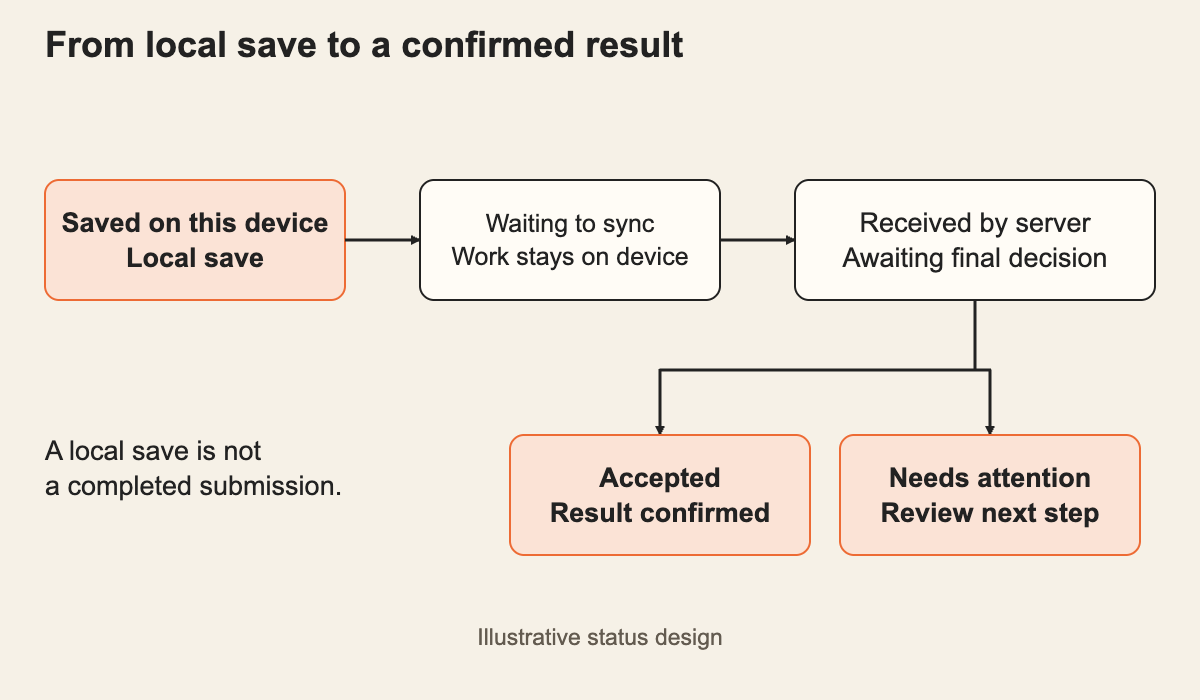
A useful design distinguishes “saved on this device” from “received by the LMS”. We recommend showing when work is saved locally, waiting to synchronise, received by the server and finally accepted or needing attention.
These labels prevent a learner mistaking a local save for a completed submission. Provide a visible retry action and a clear explanation when work cannot be accepted.
Keep the local copy until receipt is confirmed. Also agree what happens if the learner signs out, changes devices, clears browser data or reinstalls the app before synchronising.
Protect separate attempts
Consider this illustrative situation: a learner completes an exercise offline on a tablet, then makes a newer attempt online on a laptop. The tablet reconnects later.
Which result should count?
The answer needs an assessment rule, not simply whichever update arrives last. Some data platforms use last-write-wins for changes to the same record. That behaviour alone cannot decide which learning attempt should remain authoritative.
For a custom build, ask the team to give each attempt its own identity, retain its course version and distinguish device-recorded time from server receipt time. The server should check whether the attempt is still valid before updating the official result.
A repeated upload of the same attempt should not create another completion. A genuine second attempt should remain distinguishable from a retry.
Make course changes explicit
An offline learner may hold yesterday’s lesson while the server has today’s version.
Agree in advance whether existing attempts may finish against the downloaded version, require review or need to restart. Do not silently mark the newer course complete using evidence collected against materially different content.
For assessments with deadlines, confirm how offline work is treated. Do not assume a device clock proves when a submission occurred. Keep the learner informed about any requirement to reconnect before a deadline.
Test the reconnect journey
Use a small pilot with your actual devices and course types. Include:
- An interrupted download, followed by opening the lesson offline.
- An upload interrupted after the server receives it but before the app receives confirmation.
- Two devices submitting different attempts.
- A course update while work is waiting to synchronise.
- Expired sign-in or withdrawn course access at reconnection.
- The app closing before queued work reaches the server.
For a browser-based LMS, do not promise unattended background synchronisation across every browser. Background Sync support varies. Include a reliable foreground path that lets learners reopen the app and check pending work.
Buy a tested workflow
Ask for the offline activity list, conflict rules, learner status screens and agreed acceptance tests in the proposal. Include download storage and shared-device handling in the scope.
Review these alongside your release and handover checks, rather than leaving synchronisation until launch.
Put the thinking to work.
Planning offline training? Tell Tej Studio which activities, devices and connection conditions your learners use. That is a practical starting point for defining the right scope.
Start a conversation